
How to troubleshoot not receiving new messages in your email client
- Reading
- 6 mins
- Categories
- Proton Mail
- Proton Mail Bridge
Proton Mail Bridge interfaces with your email client to allow you to manage emails in desktop email clients, such as Outlook or Thunderbird.
There might be some rare cases when you stop receiving new messages in your email client. In this article, we will help you troubleshoot this issue.
Determine why you are no longer receiving messages
Before you start troubleshooting, please restart Bridge first, and then your email client, to ensure they are connected.
Here are some questions you can answer to determine what the cause of the issue is:
- Is the Bridge showing any connection errors?
- Are messages being received — but with a delay?
- Does the same thing happen if you configure your account in a different email client?
If Bridge is showing connection errors, you can follow our guide for troubleshooting connection issues.
In case you are receiving messages with a delay, we have a separate troubleshooting article for messages received with a delay.
When attempting to reproduce the issue with a different email client, if you are still not seeing the messages, it means the issue might be coming from Bridge. Therefore, you can move on to the section for resynchronizing Bridge with Proton servers.
Otherwise, if the other email client is receiving the new messages, then the issue lies with the current email client. You can move on to the section for troubleshooting your email client.
Note: If you are using Split Address mode, the messages will only appear within the address they are stored in. Typically, the messages belong to the address they were received to or sent from. However, if you have performed imports using Easy Switch, the messages might be in the address which the messages were imported into.
Troubleshooting your email client
Depending on the email client you are using on your device, the instructions will differ. First, it is worth reducing the interval for synchronizing messages to a lower number such as 1 minute.
Classic Outlook
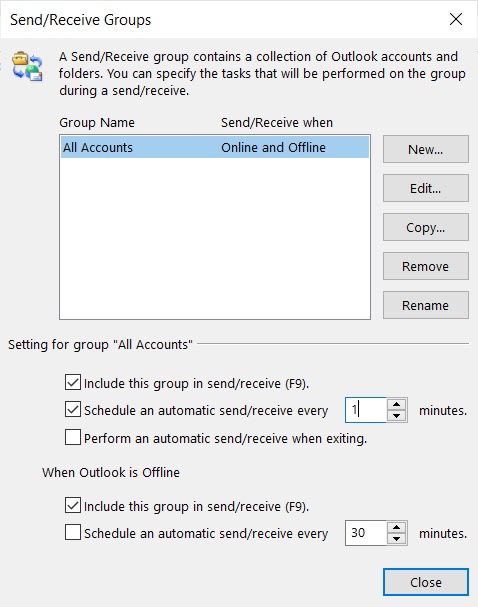
Go to the Send/Receive tab, click on Send/Receive Groups → Define Send/Receive groups. From here, choose your Proton Mail account(s), then enable and change Schedule an automatic send/receive every 1 minute.
What to do when receiving a “Cannot connect to server” error?
If you’re seeing this error message, it means that Outlook is not able to connect to Bridge. To resolve this error, follow these steps:
- Make sure Bridge is running and is connected, then perform a new Send / Receive in Outlook.
- Ensure the server settings are correct. You can find them from File (top-left) → Make sure your Proton account is selected → Account Settings → Server Settings. Make sure they match the ones shown in Bridge.
If nothing works, you might need to remove and re-add your account to Outlook. You can use our client configuration guides to configure it again.
Note: When you re-add your account to the email client, your Proton Mail data will be downloaded again. To be safe — in case there are any un-synced local changes — we recommend backing up your email using your email client before removing the account.
Thunderbird
Open the Menu from the top-right → click Account Settings → Select your account on the left side and choose Server Settings under it. Then, make sure “Check for new messages every X minutes” is checked and set the time to 1 minute.
This setting will ensure that the email client is synchronizing with the Bridge more frequently and can resolve the issue in some situations.
What to do when receiving a “Could not connect to mail server 127.0.0.1; the connection was refused.” error?
If you’re seeing this error message, it means that Thunderbird is not able to connect to Bridge. To resolve this error, follow these steps:
- Make sure Bridge is running and is connected, then go back to Thunderbird and click on a different folder or click “Get Messages” at the to-left.
- Ensure the server settings are correct. Navigate to Menu (at the top-right) → Account Settings. From here, select your account and choose Server Settings. Make sure the server and port match the details in Bridge.
What to do when receiving a “server certificate does not come from a trusted source” error?
If you’re seeing a notification that the server certificate does not come from a trusted source, click on the notification in the Windows notification center and Thunderbird will allow you to add an exception. Adding an exception by using the Add Exception option in Server Settings does not work as Thunderbird does not detect the certificate.
Alternatively, you can switch Connection Security to None from Menu (at the top-right) → Account Settings. From here, select your account and choose Server Settings.
To use this option, it is a requirement to have Bridge configured with STARTTLS. You can find this option from Bridge → Settings → Connection Mode.

Note that this is only for the connection from Thunderbird to Bridge, so there’s no additional security issues as the connection never leaves your device. Bridge will still connect to Proton servers with a TLS connection.
If this does not resolve the issue, we recommend removing the account from the email client and adding it again to re-establish the connection. You can use our client configuration guides.
Apple Mail
Open Apple Mail, go to Mail (at the top-left) → Settings → General. From here, find “Check for new messages” and set it to “Every Minute”. This will ensure that Apple Mail checks for messages more frequently.

What to do when receiving an “Unable to verify” error?
This error typically appears when the password in Apple Mail is incorrect. You’ll be asked to enter your password again. Open Bridge → Choose the correct account from the side and copy the password using the icon to the right of the password, then paste it in Apple Mail.

What to do when receiving an “Unable to connect to server” error?
This error can have two causes:
- Proton Mail Bridge is not running
- The IMAP and SMTP servers are misconfigured in Apple Mail
First, ensure that Bridge is running, and the account is connected and not signed out. Then click “Try again”.
If that does not work, the easiest solution is to remove your account from Apple Mail and re-add it again:
- Delete your old profile in your Mac settings (from Settings → General → Device Management → Profiles, on macOS older than 15, it should be in System Settings → Privacy & Security → Profiles)
- Open Proton Mail Bridge again and click Configure email client → Apple Mail, then follow the prompts.

Resynchronizing Bridge with Proton servers
In the rare case that the Bridge can be out of sync with Proton servers, this option will allow you to ensure that the Bridge is up-to-date with the mailbox state.
The quickest option to force a resynchronization is to open Bridge → Go to Settings → Advanced and use the Repair Bridge option.
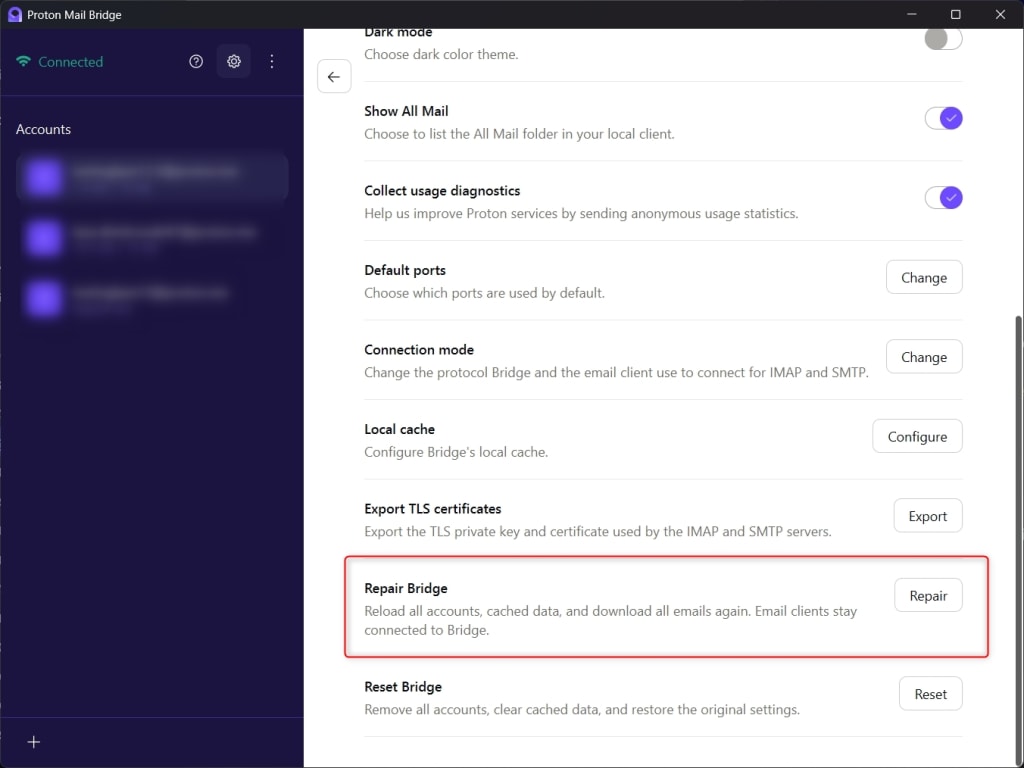
Your messages will start resynchronizing soon, and they will reappear in the email client.
In case you are not seeing messages in your email client, you might need to also remove and re-add the account to your email client.
Note: Before removing the account, you can create a backup of your email using your email client. This ensures your data is preserved in case it’s needed later.