
How to install Proton Mail Bridge
- Reading
- 3 mins
- Category
- Introduction to Bridge
To use Proton Mail Bridge, you need to:
- Download the Proton Mail Bridge app.
- Add your account(s) to Proton Mail Bridge.
- Configure your email client (Outlook, Thunderbird, Apple Mail) to use Proton Mail Bridge.
Download Proton Mail Bridge for your platform here.
Add your account(s) to Proton Mail Bridge
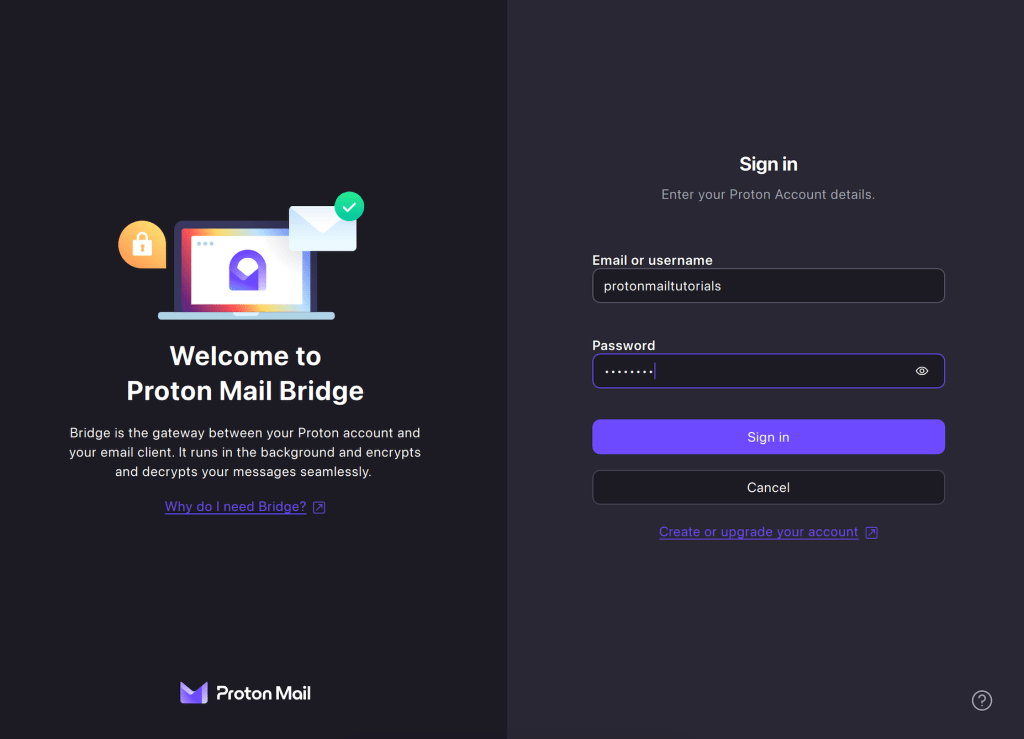
1. Install Proton Mail Bridge, open the app, enter your Proton Mail account details, and click Sign in.
2. Your account is now successfully connected to Proton Mail Bridge. Use one of the buttons to choose your email client so our setup wizard can better help you configure your account.

Once you complete all the steps, the setup will be complete.
Notes
1. By default, you will be in combined addresses mode. This means emails from all of your addresses will be sent and received together in the same mailbox.
Split addresses mode allows you to add each of your addresses to the client separately. To use split addresses mode:
a. Turn the Split addresses switch on.
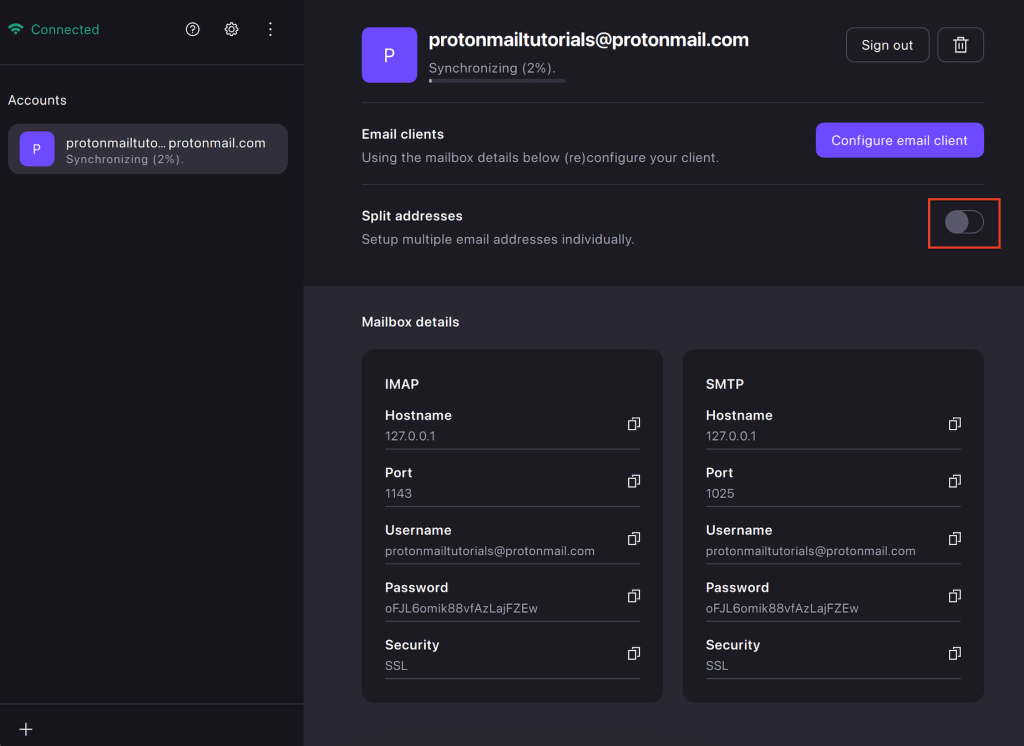
b. Click Enable split mode in the confirmation box that appears.

2. Sign out of your account to disable sending and receiving new emails. Your existing emails will still be stored in your email client. Your email client will not be able to connect to Bridge while your account is signed out.

If you are signed out, which can also happen if you change your password, you can Sign in again to access your account (if you only have one Proton Account, you will sign in from the Welcome screen).
How to add more accounts to Bridge
Bridge allows you to add an infinite amount of paid accounts and connect them to your email client. To add additional accounts, follow the below steps:
1. With Bridge open, in the bottom-left corner, you will see a “+” icon. Click the plus icon and you’ll see the login screen again.

2. Now, enter your login details, and you will be able to add a new account to Bridge.
3. Each account has its own configuration details, you can select the accounts from the left side to see the configuration details for the desired account.

4. To see a configuration guide, click on the “Configure email client” button in Bridge and choose the email client you’d like to configure.
Configure your email client
The final step is to configure your email client (for example, Outlook, Thunderbird, or Apple Mail).
Learn how to configure your email client
Any questions? Check our Proton Mail Bridge frequently asked questions.